Logi Gaze Tracker — Quick Start
Gaze Tracker is a tray app that turns a webcam into an eye tracker. It estimates where you
are looking on the screen and streams the gaze point (px and mm) as JSON over a local websocket
(ws://127.0.0.1:8964), so your own apps, prototypes or scripts can use it with any websocket client.
- Available for Windows and macOS (Intel and Apple Silicon).
- Works with any Logitech webcam; best results at Full HD (1920×1080).
- Runs fully locally; no account required. Needs camera permission and network access on first run (the MediaPipe model is fetched from a CDN).
1. Download
| Platform | Installer |
|---|---|
| Windows | Gaze.Tracker.Setup.1.0.1.exe |
| macOS Intel | Gaze.Tracker-1.0.1.dmg |
| macOS Apple Silicon (M1+) | Gaze.Tracker-1.0.1-arm64.dmg |
The builds are unsigned, so the OS will warn you once on first launch.
2. Install
macOS
-
Open the
.dmgand drag Gaze Tracker onto Applications.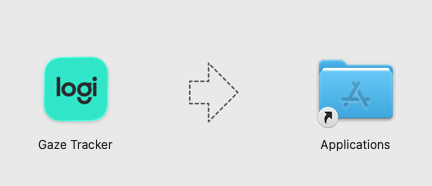
-
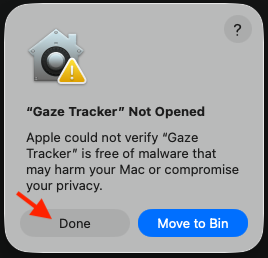
Launch it from Applications. macOS blocks it the first time. Click Done (not Move to Bin).
-
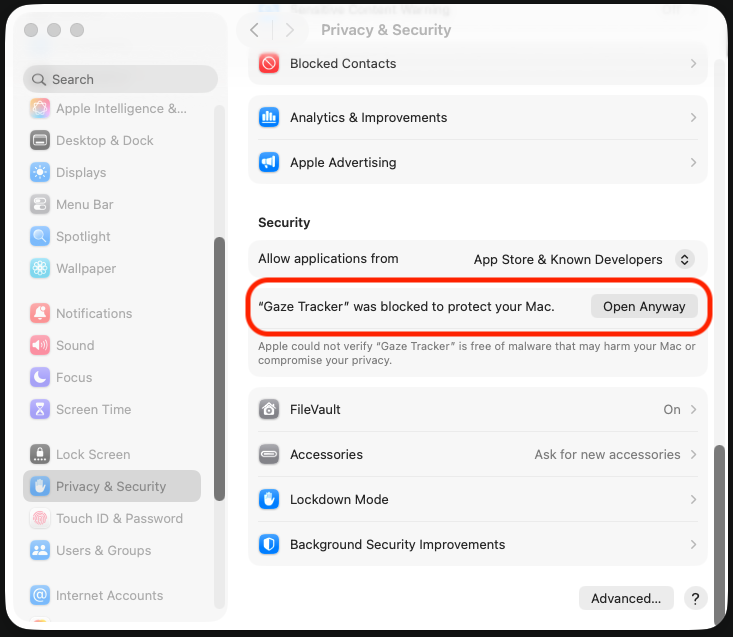
Open System Settings → Privacy & Security, scroll to Security and click Open Anyway next to “Gaze Tracker” was blocked.
-
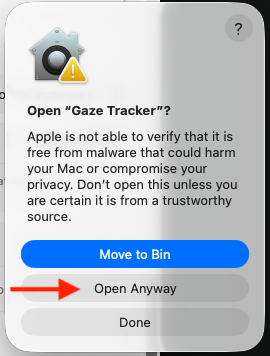
Confirm with Open Anyway (you may be asked for your password), then allow camera access when prompted.
-
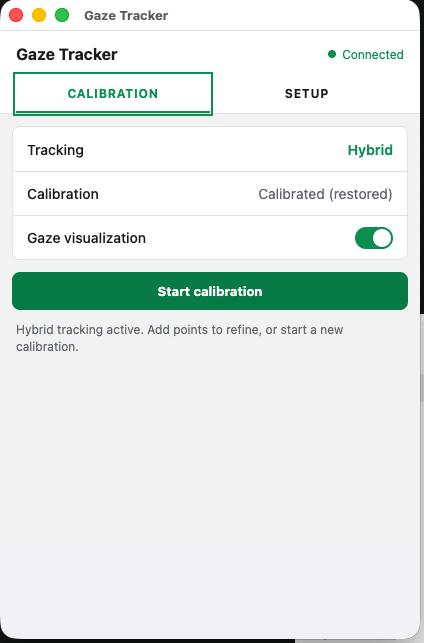
The app lives in the menu bar (tray icon). Open Controls… from the tray icon to get the window below.
Windows
Run the installer. If SmartScreen shows “Windows protected your PC”, click More info → Run anyway and accept installing the unsigned software. Allow camera access when asked, then open Controls… from the tray icon.
3. Configure the rig (Setup tab)
Do this once per camera + screen combination. The tracker needs to know the physical geometry.
- In Setup, pick the Camera and set Resolution (use 1920×1080 if available).
- Expand Rig setup and adjust the values for your hardware, then press Apply rig:
- Camera width/height (px): must match the capture resolution exactly.
- Focal length fx/fy, principal point cx/cy (px): camera intrinsics for that resolution.
- Screen width/height (mm): physical size of the active display area.
- Camera right of / below center, forward (mm): camera position relative to the screen center (a camera mounted above the screen uses a negative below center value).
- IPD (mm): your interpupillary distance (about 62 mm is typical).
- Pixels passed to MediaPipe: leave Mirrored horizontally unless gaze moves the wrong way horizontally.
The prefilled values describe one measured setup, not universal defaults. Measure yours. Applying a different rig, or changing camera, clears the calibration.
4. Calibrate
Calibration is unavailable until a rig is applied.
- Sit at your normal distance, face the camera and keep your head reasonably still.
- In Calibration, click Start calibration (or tray icon → Start Calibration).
- Look at each of the nine points on the fullscreen pass and click or press Space to sample it. Esc cancels.
- When finished, the window shows Tracking: Hybrid and Calibration: Calibrated. Turn on Gaze visualization to see where the tracker thinks you are looking.
Refine: once calibrated, use Add points to run another nine-point pass, e.g. after moving your head or seat position, or from a different posture or distance. More positions give better coverage.
Start over: New calibration discards the previous calibration entirely before starting a fresh pass.
5. Use the gaze data
With the app running and calibrated, connect to ws://127.0.0.1:8964 and send
{"type":"start_stream"}. See the sample-code README for the protocol,
a browser demo (gaze-viewer.html) and a Python logger (gaze_logger.py), all source code is MIT licensed.